Digital Music Distribution: A Complete Creator's Guide
digital music distribution
Welcome offer — 56% OFF


Find the best screenshot app for creators, marketers, teams, and developers with platform, workflow, pricing, privacy, and feature comparisons.
You're trying to capture a long webpage, hide a customer's email address, mark up a bug report, and send a clean result to Slack before the thread dies. The problem is that screenshot apps don't all solve the same job, and the wrong one slows the whole handoff down. Some tools are built for fast capture and quick sharing, others are documentation suites, some are automation engines, and a few are really about hosted links and collaboration.
That's why the question isn't which app has the longest feature list. It's which app fits your platform, your capture mode, your editing depth, your sharing model, your automation needs, and your privacy rules. The comparison below covers ten strong options across Windows, macOS, browsers, and cross-device workflows, with a clean split between lightweight utilities, documentation tools, and team-oriented capture-to-link platforms. Pricing and plan details can shift, so verify current terms on each provider's site before rollout.
For context, screenshot and capture software sits in a durable growth category, not a niche utility. The screen capture software market reached $10.84 billion in 2025 and is projected to reach $18.96 billion by 2030, with a 11.4% CAGR, while screen recording software is also expanding, with one report placing it at $2.10 billion in 2025 and forecasting $4.62 billion by 2030 at a 17.08% CAGR (screen capture market outlook). Screenshot presentation itself is also being versioned and compared more seriously, which makes tool choice more important than it used to be.
1. ScreenSnap Pro Where it stands out in real workflows2. TechSmith Snagit Why teams keep paying for it3. ShareX Best for automation, not for handholding4. CleanShot X A polished tool with a clear Mac bias5. Shottr Lightweight doesn't mean basic6. Greenshot Where it fits, and where it doesn't7. Lightshot by Skillbrains The privacy warning matters here8. Monosnap Useful for teams that want storage plus capture9. Zight, formerly CloudApp Team features are the real reason to buy10. Gyazo Good for speed, less good for precision11. Awesome Screenshot The browser is where it shinesTop 11 Screenshot Apps ComparisonChoose the Tool That Matches Your Capture Habit
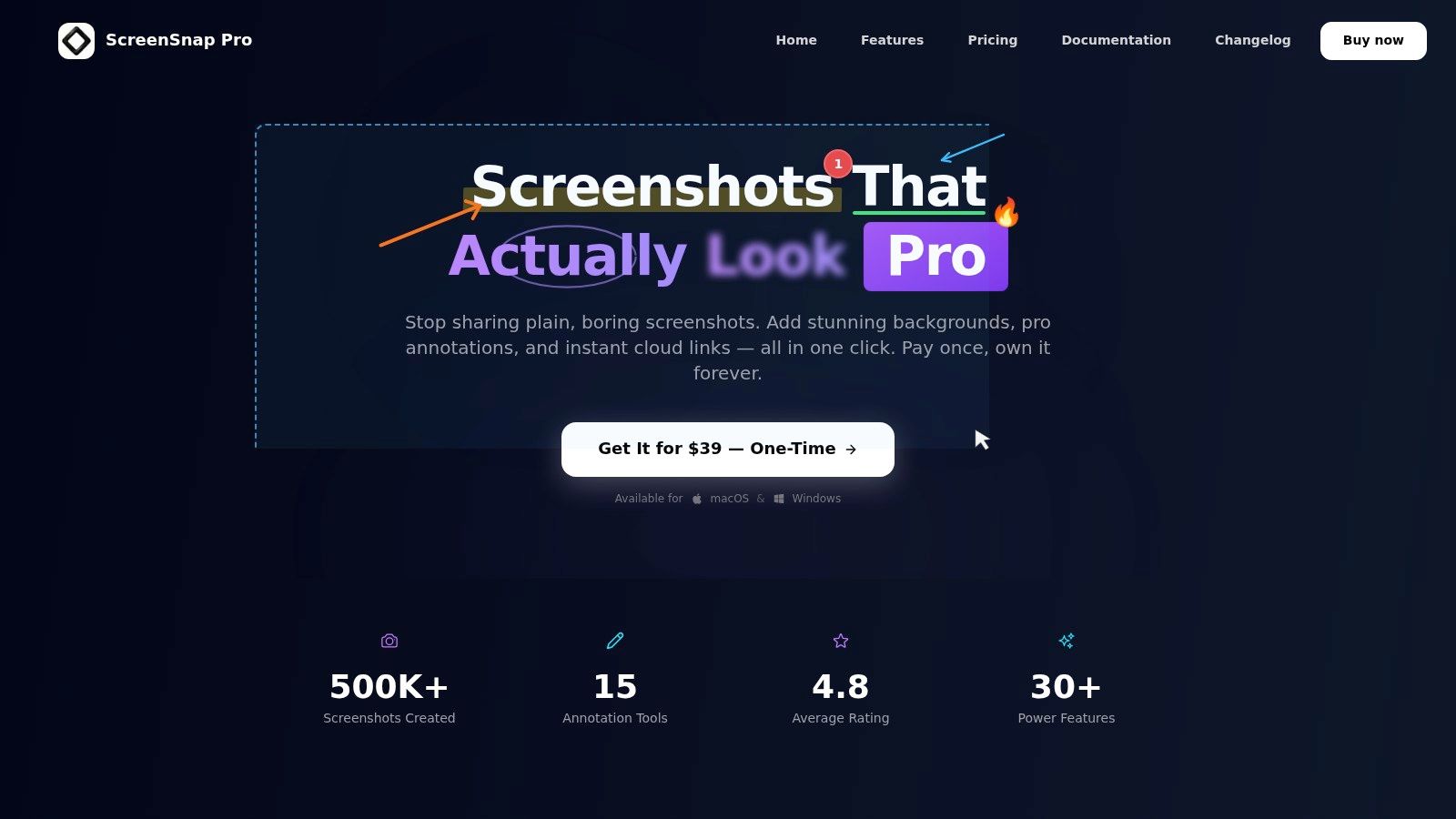
ScreenSnap Pro is the strongest fit when you want capture, editing, recording, and sharing in one desktop app without sliding into subscription sprawl. The product is aimed at macOS and Windows users who need area, window, and full-screen capture, plus screen recording with webcam, system audio, and microphone, then want to export as video or lightweight GIF. Its workflow makes sense for people who document issues, build tutorials, or send polished visuals to teammates all day.
The practical edge is how much it compresses the handoff. You get 15 annotation tools, including arrows, rectangles, blur, pixelate, spotlight, callouts, text, emojis, and pencil, plus 500+ gradient backgrounds and framing controls like padding, rounded corners, and drop shadow. That means a support agent can hide sensitive details, a product marketer can keep visuals on-brand, and a teacher or trainer can keep a step-by-step capture readable without opening a separate editor. It also includes OCR for copying text from screenshots, images, PDFs, or locked content, which is useful when the screenshot is really a source document in disguise.
ScreenSnap Pro works especially well when you want a single local tool that stays out of the way. The Quick Access Overlay is a real productivity gain because it lets you view, edit, drag, or share the latest capture immediately, and the Pin function helps when you're following a long process and need the reference image visible on top of your workspace. Website capture with device presets, automatic blocking of popups and cookie banners, and full-page output also make it useful for web reviews and QA notes.
Practical rule: choose this kind of tool when your team wants polished output without moving screenshots through three different apps.
The sharing model is also sensible from a privacy perspective. ScreenSnap Pro works fully offline when cloud features aren't used, and its optional cloud creates short, signed links for direct embedding in docs and messaging tools. That matters because the best screenshot app for one team isn't always the fastest uploader, it's the one that doesn't force sensitive content into a public link by default. The one-time $39 license with two keys that can each be activated on two computers is attractive for teams that hate recurring fees, though you should still verify current terms on the ScreenSnap Pro website.
If your day involves tutorials, bug reports, internal docs, and quick sharing, this is the most balanced all-in-one choice in the group.
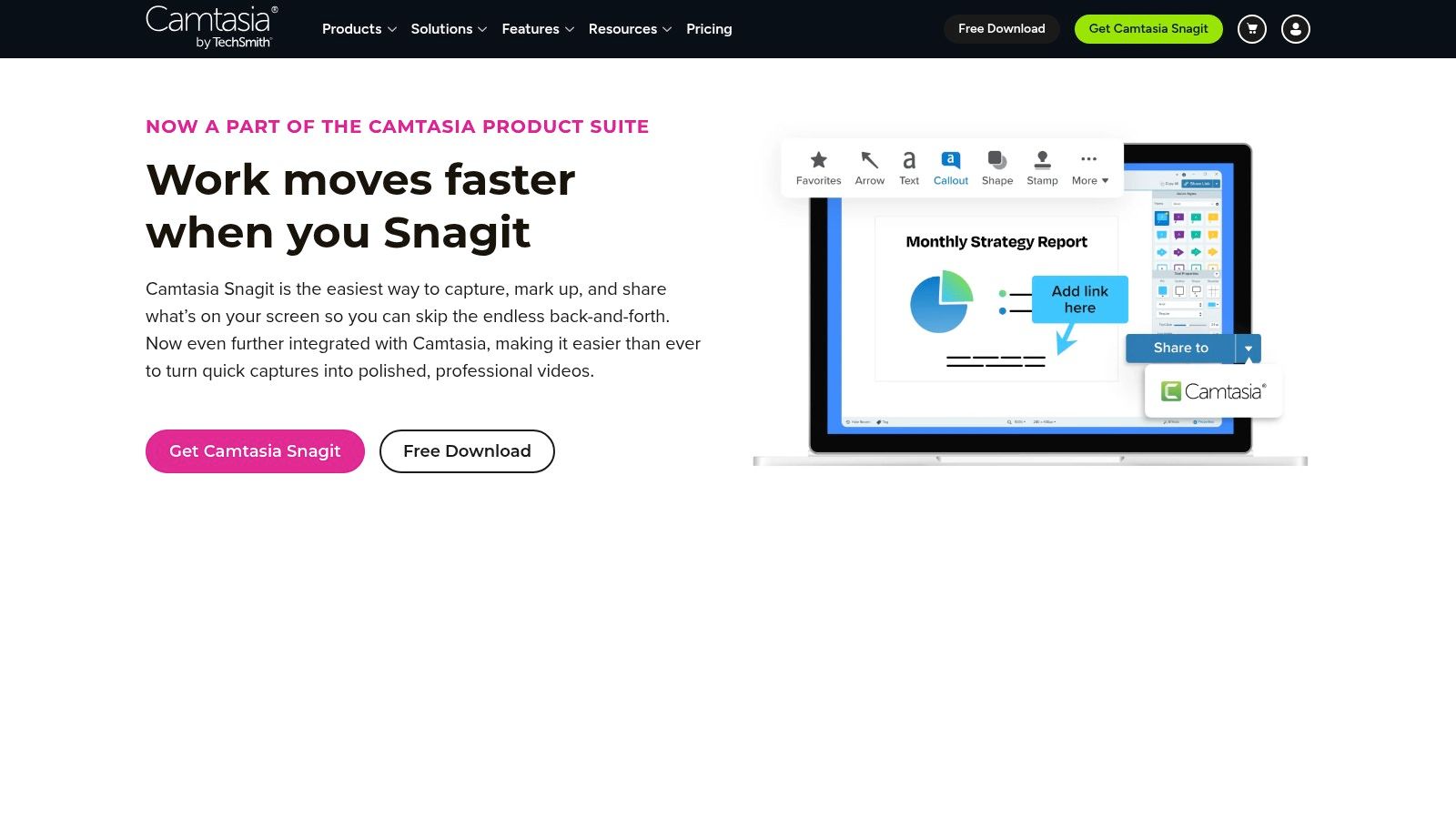
Snagit is still the safest recommendation for teams that produce repeatable how-to visuals. It's a polished Windows and macOS suite that fits documentation, customer education, marketing ops, and any workflow where screenshots become part of a process library rather than one-off artifacts. The big reason people keep it around is that it handles the unglamorous work, long-page capture, step-by-step annotation, and sensitive-content masking, without making users think too hard about the tool itself.
The important features are straightforward. Scrolling capture handles long pages and apps, AI Step Capture helps auto-generate guides, and Smart Redact hides sensitive information. The built-in editor adds callouts, stamps, and templates, which saves time when your team keeps making the same kind of support articles or internal runbooks. If you're comparing it with other creator tools, it sits much closer to a documentation system than a minimalist grab-and-share utility.
Snagit's strength is consistency. It's not the lightest tool in the roundup, and that's fine if your job is to create visuals that other people can follow later. The downside is the subscription model, which some users dislike because screenshot needs are often intermittent rather than daily. But for teams that publish help content, QA notes, onboarding docs, and sales enablement assets, the time saved on templating and redaction can outweigh the billing friction.
The cleaner comparison is not just versus other screenshot apps, but versus broader content tools. If your visuals are part of a larger recording and editing workflow, it can help to compare your stack with a separate video toolset, such as the discussion in this video editing software comparison. Snagit itself is still the more direct choice for screenshots, guided steps, and redaction-heavy documentation.
The trade-off is simple. If you need speed and flexibility, there are leaner tools. If you need repeatable business content, Snagit is one of the few apps that feels purpose-built for it. The website is TechSmith Snagit, and that's where you should confirm current billing and plan structure.
ShareX is the Windows power user's answer to screenshot automation. It's open source, highly configurable, and ideal when the screenshot is only the first step in a larger chain that includes upload, naming, filing, copying a link, or pushing files to a custom destination. If you've ever wanted a screenshot app to behave more like a workflow engine, ShareX is the obvious candidate.
The core capture options are what you'd expect, region, window, fullscreen, plus GIF and video capture. The difference is in what happens after capture. ShareX lets you build After capture and After upload workflows, which means you can attach actions instead of manually repeating them. That can save a lot of time if your team always sends the same kind of visual into the same storage or ticketing path.
The destination list is one of the reasons it keeps showing up in recommendations. It can send content to places like Imgur, S3, and Cloudflare R2, and it includes a built-in editor and OCR. That makes it useful for support teams, developers, and creators who need a fast pipeline from desktop to published link. The catch is that it's Windows-only, and the learning curve is real if you want to customize destinations and tasks properly.
For some people, that complexity is the point. You can set it up once and then let the app do the repetitive work. For others, it's too much control for a simple job. That's why ShareX usually makes sense when you already know your capture flow and want to remove clicks, not when you're still deciding how you want to work. The ShareX site is the place to check current builds and community activity.
If your team treats screenshots like files to route, not just images to edit, ShareX is one of the most capable options available.
CleanShot X is the Mac choice for people who want a fast, elegant, creator-friendly screenshot app without clutter. It's built for users who live in macOS, care about presentation, and want the capture process to feel polished from shortcut to export. For many creators, that smoothness matters as much as raw feature count.
It supports screenshots, scrolling capture, and screen recording, along with pin to screen behavior, studio and zoom effects in recordings, OCR, and an optional cloud for instant sharing. The app feels designed around small, useful details instead of giant feature jumps. That's why it tends to resonate with designers, marketers, and solo founders who want their visuals to look refined without spending extra time in another editor.
The main trade-off is obvious, it's Mac-only. If your team is mixed-platform, that instantly rules it out as a shared standard. It also sits in a premium category, so if you only need the occasional crop and annotate job, it can feel more expensive than your actual use case justifies. Still, if you're a Mac creator who wants consistent results and quick sharing, the experience is excellent.
The optional cloud layer is useful, but it's best treated as an add-on rather than the core reason to buy. CleanShot X shines when you care about UI quality, quick editing, and getting a finished-looking result without much effort. For Mac users who also record tutorials or product demos, pairing it with a broader video workflow can be smart, and this screen recorder for Mac guide is useful if you're building that stack.
If your definition of the best screenshot app includes speed, style, and quiet reliability, CleanShot X belongs near the top of the Mac-only list. The website is CleanShot X.
Shottr is what happens when a screenshot app stays tiny, fast, and focused. It's a Mac-only tool that appeals to people who hate bloated interfaces but still want strong annotation, OCR, and presentation controls. The immediate appeal is its responsiveness, because the app is built to get in, capture, and get out.
The feature set is compact but thoughtful. You get millisecond-fast capture and editor performance, scrolling screenshots, OCR and QR support, a backdrop tool for gradients and shadows, and optional S3 upload with a pin to screen feature. For engineers and designers, that's enough to make a screenshot readable and presentable without forcing a larger workflow around it.
Shottr works well when you're creating visuals frequently but don't need a whole documentation suite. It's especially practical for product teams that need on-brand screenshots, because the gradient backdrops and shadow controls let you clean up a capture without starting from scratch. It also has a generous free mode, with paid licensing for some advanced features, so it's easy to test in a real workflow before committing.
The limitation is just as clear. It's Mac-only, and if you want heavier cloud or advanced distribution features, you'll need the paid path. That's fine if you value speed and minimal footprint more than enterprise governance or collaboration layers. If your work lives in the browser or in team workflows, other tools will fit better.
Shottr is a good reminder that the best screenshot app isn't always the most feature-packed one. Sometimes it's the tool that lets you capture, clean up, and move on without a mental tax. The product site is Shottr.
Greenshot is the classic lightweight screenshot utility for people who want quick capture and quick markup on Windows. It's been around long enough to be familiar, and that familiarity is part of the appeal. The workflow is direct, capture a region, window, or full screen, annotate it, and export it somewhere useful.
The tool is free on Windows and has a separate paid build on the Mac App Store. That split matters, because the Windows version is the one many know as the simple, no-frills option. The editor stays lightweight, the annotation path is quick, and one-click export keeps the process moving without turning the app into a project.
Greenshot makes sense when your team doesn't need advanced recording, complex templates, or sophisticated sharing logic. It's a practical choice for internal documentation, quick support notes, and everyday markups where speed matters more than presentation polish. If a tool can be learned in minutes and forgotten between uses, that's often the sign it fits this category well.
The downside is that it doesn't compete with Snagit or CleanShot X on depth. You won't get the same breadth of capture modes or the same editing richness, and the macOS experience is more complicated because it's a separate paid App Store build. So if your workflow is mostly “take it, mark it, send it,” Greenshot works. If your screenshots need to become polished assets, it starts to feel thin.
That's why Greenshot is often the answer for people who want a straightforward Windows utility instead of a full content production app. The website is Greenshot.
Lightshot is the simplest answer in the group when the job is “grab a region and share it fast.” It runs on Windows, macOS, and browser tools, and its appeal is obvious the moment you use it. There's very little ceremony, which makes it good for casual screenshots and fast internal sharing.
The core workflow is plain: capture a region, add simple markup, and upload to prnt.sc for an instant link. That makes it convenient for quick exchanges, especially when the image doesn't need deep editing or elaborate presentation. If you want a tool that behaves like a visual sticky note, Lightshot is close to that idea.
The convenience comes with a clear caution. The public-link model has documented privacy concerns because upload URLs can be guessable, and that makes Lightshot a poor choice for anything sensitive. It's best used for non-sensitive grabs where speed matters more than control. On newer Apple silicon Macs, compatibility can also be spotty, so Mac users should test it before depending on it.
That doesn't make it a bad tool. It just makes it a narrow one. For support teams, regulated environments, or anyone handling customer data, a public-link shortcut can create more risk than value. For quick, disposable screenshots, though, it's still one of the easiest tools to understand.
If you want a no-fuss capture utility and you're not sharing anything private, Lightshot gets the job done. The product page is Lightshot by Skillbrains.
Don't use a public-link screenshot app as your default if your team ever captures customer data, internal dashboards, or anything governed by policy.
Monosnap sits in the middle ground between desktop capture and hosted sharing. It's built for Windows and macOS, and it's useful when you want screenshots, GIFs, and video capture with cloud storage and integrations in the same package. That makes it appealing for teams that don't want to assemble a separate upload stack.
The feature set includes annotation, hotkeys, and quick-share links, with cloud and integration availability depending on plan. That plan sensitivity is important, because the product's usefulness changes based on what tier you choose. It's the kind of app that works best when you already know whether you need personal or commercial usage and are comfortable checking the fine print.
Monosnap is handy for product teams, support desks, and people who need capture plus hosted access without much friction. The cross-platform footprint is a plus, and the active Mac version matters if your team includes Apple users. It also gives you a more structured choice than some of the ultra-lightweight tools, which is useful if you need to separate personal from business workflows.
The downside is less about the tool itself and more about the surrounding communication. Recent domain and website changes have made the product a little uneven to follow, so buyers should verify current plan details carefully. If you're evaluating it as part of a team rollout, that due diligence matters.
Monosnap is a practical choice when the screenshot is only useful if it can be stored, searched, and shared quickly. It's not the most minimal app here, but it's solid for teams that want a hosted workflow without building one themselves. The website is Monosnap. If you're already exploring visual content workflows, this guide to create AI-generated images is relevant when screenshots are only one part of your broader creative pipeline.
Zight is more than a screenshot tool, it's a visual communication platform. That distinction matters because its value comes from capture-to-link speed, team controls, and the ability to mix screenshots, GIFs, and video in a shared workflow. It's a strong fit for support, sales, and marketing teams that need to move visual explanations around fast.
The app supports screenshots with annotations and instant share links, plus scrolling screenshots, GIF/video recording, and higher-tier team features like branding, SSO, and admin controls. Some plans also include AI helpers. If you need a link that can be dropped into a ticket, a prospect email, or a knowledge base entry with very little friction, Zight is built around that use case.
The trade-off is that you're not just buying a capture utility. You're buying into a platform, which means paid tiers matter more here than they do for basic tools. That's fine if collaboration and brand control are important, but it can be overkill for solo users who only need occasional screenshots. Pricing has also changed recently, so current plan limits should be checked on the provider's site.
Zight makes the most sense when your screenshot is part of a communication loop rather than a file on your desktop. The instant-link workflow is the main attraction, and the team features push it further into shared usage than most lightweight apps. If your organization needs branded visual communication with minimal handoff friction, it earns a look. The product page is Zight. If you're working on linked media workflows after capture, this image-to-video maker guide can help with the next creative step.
Gyazo is built for one thing above all else, one-click capture to cloud link. It's the kind of app people keep using because it removes friction so aggressively that they stop thinking about the capture step. It works across desktop and mobile, which makes it useful when you want quick visual bookmarks you can revisit from different devices.
The feature set includes screenshots, short video and GIF capture, a cloud library with search and cross-device access, and OCR on paid plans. That combination makes it more than a throwaway sharing tool, especially if you want to collect snippets over time instead of just firing off one-off images. The paid tiers add useful depth, but the free plan is intentionally limited.
Gyazo works best when the main objective is to get a visual into a link immediately. Teams that need to bookmark product issues, reference examples, or bounce images between devices often like that flow. The downside is that editing and templates are more limited than in pro desktop tools, and the free plan's limits on history and recording length mean you'll hit a ceiling if you lean on it heavily.
That makes Gyazo a good fit for fast-moving communication, not for polished documentation. If your screenshots need detailed annotation, redaction, or branded framing, other apps do that better. But if you value speed and cross-device convenience, it does its job well. The website is Gyazo.
Awesome Screenshot is the browser-first option that belongs on every web team shortlist. It works as Chrome, Edge, and Firefox extensions, plus desktop apps, and it's especially useful for marketing QA, landing page reviews, and any workflow where the browser is the work surface. If your life happens on websites, this app fits naturally.
Its strengths are full-page capture, in-browser region capture, markup, and screen plus webcam recording with share links. Paid tiers add integrations and workspace features, which makes it move from a simple browser utility toward a team collaboration tool. The free tier lowers the barrier to entry, so it's easy to test in real browser-heavy work.
Awesome Screenshot makes the most sense when the problem is web content, not desktop software. Full-page capture is a genuine advantage for landing pages, product reviews, and QA checks where the whole page matters. The trade-off is that the desktop app is not built for deep editing the way a pro desktop suite is, so if you need heavy post-processing, you'll outgrow it.
That limitation is acceptable because the app is clear about what it does well. It gets the page, marks it up, and shares it without forcing a complicated workflow. For teams living in browser tabs, that's often enough. The product is available at Awesome Screenshot.
| Tool | Core Features ✨ | UX / Quality ★ | Value / Price 💰 | Target Audience 👥 | Standout / USP 🏆 |
|---|---|---|---|---|---|
| ScreenSnap Pro | Screenshots + screen recording, 15 annotations, OCR, 500+ gradients, Quick Access Overlay, optional cloud | ★★★★☆ | 💰 One‑time $39, lifetime updates | 👥 Creators, educators, small teams wanting offline-first tool | 🏆 One‑time license + studio-style framing & fast workflow |
| TechSmith Snagit | Scrolling capture, AI Step Capture, redaction, templating, built-in editor | ★★★★☆ | 💰 Subscription (annual) | 👥 Documentation, marketing & enterprise teams | 🏆 Robust templating & enterprise-grade reliability |
| ShareX | Region/GIF/video capture, OCR, highly configurable after-capture automation, many upload destinations | ★★★★☆ (power users) | 💰 Free (open source) | 👥 Power users, devs, automation-focused creators | 🏆 Extremely flexible upload/workflow automation |
| CleanShot X | Mac-only screenshots, scrolling & recordings, pin-to-screen, CleanShot Cloud, OCR | ★★★★★ | 💰 One‑time (optional Cloud/subscription for sharing) | 👥 Mac creators & designers seeking polished UX | 🏆 Smooth, Mac‑native experience with fast sharing |
| Shottr | Millisecond captures, OCR, scrolling screenshots, gradient backdrops, optional S3 upload | ★★★★☆ | 💰 Free tier + paid upgrade | 👥 Mac users who value speed & minimalism | 🏆 Super-fast capture + lightweight editor |
| Greenshot | Fast region/window/fullscreen capture, simple annotations, one‑click export | ★★★☆☆ | 💰 Free on Windows; paid Mac App Store build | 👥 Windows users needing quick markups | 🏆 Reliable, no‑frills capture for rapid documentation |
| Lightshot | Quick region capture, instant markup, prnt.sc uploads, browser extensions | ★★★☆☆ | 💰 Free | 👥 Casual users needing fast, simple screenshots | 🏆 Very quick capture-to-share; note prnt.sc privacy concerns |
| Monosnap | Screenshot/GIF/video, annotations, cloud storage & integrations, hotkeys | ★★★★☆ | 💰 Freemium, paid tiers for storage/features | 👥 Creators & small teams wanting hosted sharing | 🏆 Clear personal vs commercial tiers with integrations |
| Zight (CloudApp) | Screenshots, GIF/video, annotations, share links, team/SSO/branding controls | ★★★★☆ | 💰 Paid tiers for teams & limits | 👥 Support, sales & marketing teams | 🏆 Capture‑to‑link workflow with team/branding features |
| Gyazo | One‑click captures, cloud library, short videos/GIFs, cross‑device access, OCR on paid plans | ★★★☆☆ | 💰 Free limited; paid for history/OCR | 👥 Users who need instant cross-device sharing | 🏆 Fast capture→cloud library for quick bookmarking |
| Awesome Screenshot | Browser-first region & full-page capture, recording, markup, workspace integrations | ★★★☆☆ | 💰 Free tier; paid Pro for advanced features | 👥 Web QA, marketing & landing-page reviewers | 🏆 Best-in-class in-browser full‑page capture & markup |
The right choice depends on what you do most often, not on which app sounds most impressive. For structured documentation and repeatable business content, Snagit is the safest pick because it combines scrolling capture, templating, and redaction in a workflow that teams can standardize. For Windows power users who care more about automation than polish, ShareX is the most flexible option because its after-capture and after-upload logic can remove a lot of repetitive work.
Mac users usually end up choosing between two very different experiences. CleanShot X is the polished, feature-rich choice for creators who want speed plus presentation quality, while Shottr is the lightweight choice for people who want the fastest possible capture path with just enough annotation and presentation control. If you only need simple Windows markup, Greenshot keeps things direct and reliable. If you need something extremely quick for non-sensitive grabs, Lightshot can work, but the public-link privacy risk is real, so it shouldn't be your default for customer data or internal material.
Hosted sharing changes the decision again. Monosnap, Zight, and Gyazo make sense when capture-to-link speed matters more than local editing depth, while Awesome Screenshot is the browser-native answer for web reviews, landing pages, and QA work that happens inside tabs. If you want an all-in-one desktop tool that balances capture, annotation, redaction, OCR, recording, and optional cloud sharing without forcing a subscription, ScreenSnap Pro deserves serious consideration, especially on macOS and Windows teams that want local-first control.
A short decision filter helps. Confirm platform support first, then test the exact capture modes you rely on, especially scrolling capture and recording. Inspect export and storage behavior, because local-first and cloud-first apps create very different risk profiles. Check commercial or team licensing before rollout, especially if the tool will sit on multiple machines. Avoid uploading sensitive screenshots to public-link services unless the product clearly supports the privacy and retention model you need.
SendFame becomes relevant after capture, not instead of capture. If your workflow turns screenshots, prompts, photos, or text into AI-generated videos, images, or music, a browser-based creative suite like SendFame can help with the next step, but it isn't a replacement for a dedicated screenshot app. Use it when the visual needs to become marketing media, not when you need fast capture, redaction, or workflow-specific screenshot handling.
Choose the smallest tool that handles your most frequent workflow, then verify current pricing, privacy terms, and plan limits before you roll it out to your team.
Create Epic

SendFame

Create Epic with SendFame!
Questions: info@sendfame.com