Prompt Marketplace Guide: How to Buy, Sell, and Win in 2026

prompt marketplace
Welcome offer — 56% OFF


Learn what an explainer video maker does, key features, workflow, and how to choose the right explainer video maker for your brand.
You've built something useful, but prospective customers still ask the same question: “What does it do?” Your landing page has the details, your sales team has the explanation, and your help center has the documentation. Yet many visitors leave before they understand the problem your product solves.
That gap between having information and making information clear is where an explainer video maker earns its place. A focused video can turn a complex workflow into a visual sequence, show a product in action, and give viewers a reason to continue.

Explainer videos have become a familiar way to research products. Wyzowl reports that 96% of people have watched an explainer video to learn about a product or service, while 82% say a brand's video convinced them to buy (Wyzowl explainer video statistics). Those figures don't mean every video will convert automatically. They show that viewers already understand the format and often use it during evaluation.
This guide treats an explainer video maker as more than a design utility. You'll learn how to connect the script, visuals, narration, accessibility, distribution, and measurement to a business outcome. The path is straightforward: define the message, build the video, choose the right platform, and improve the result using evidence rather than guesswork. For broader context on applying video to smaller marketing teams, see this guide to video marketing for small businesses.
What an Explainer Video Maker Really Does From fragmented tasks to one workflow The formats these tools supportBenefits and Real World Use Cases That Drive Results Match the video to the business problem Where teams use explainer videosMust Have Features in a Modern Explainer Video Maker Creation and editing controls Brand, voice, and distribution Accessibility and localizationHow Knowlify Can Help A workflow for business teamsHow to Create an Explainer Video With an AI Tool 1. Define the audience and message 2. Build and edit the script 3. Create the storyboard 4. Generate voice, music, and motion 5. Review for access and channel fitHow to Choose the Right Platform and Avoid Costly Pitfalls Common traps that waste production timePractical Examples That Bring Explainer Videos to LifeConclusion Your Next Steps to Creating Clearer Videos
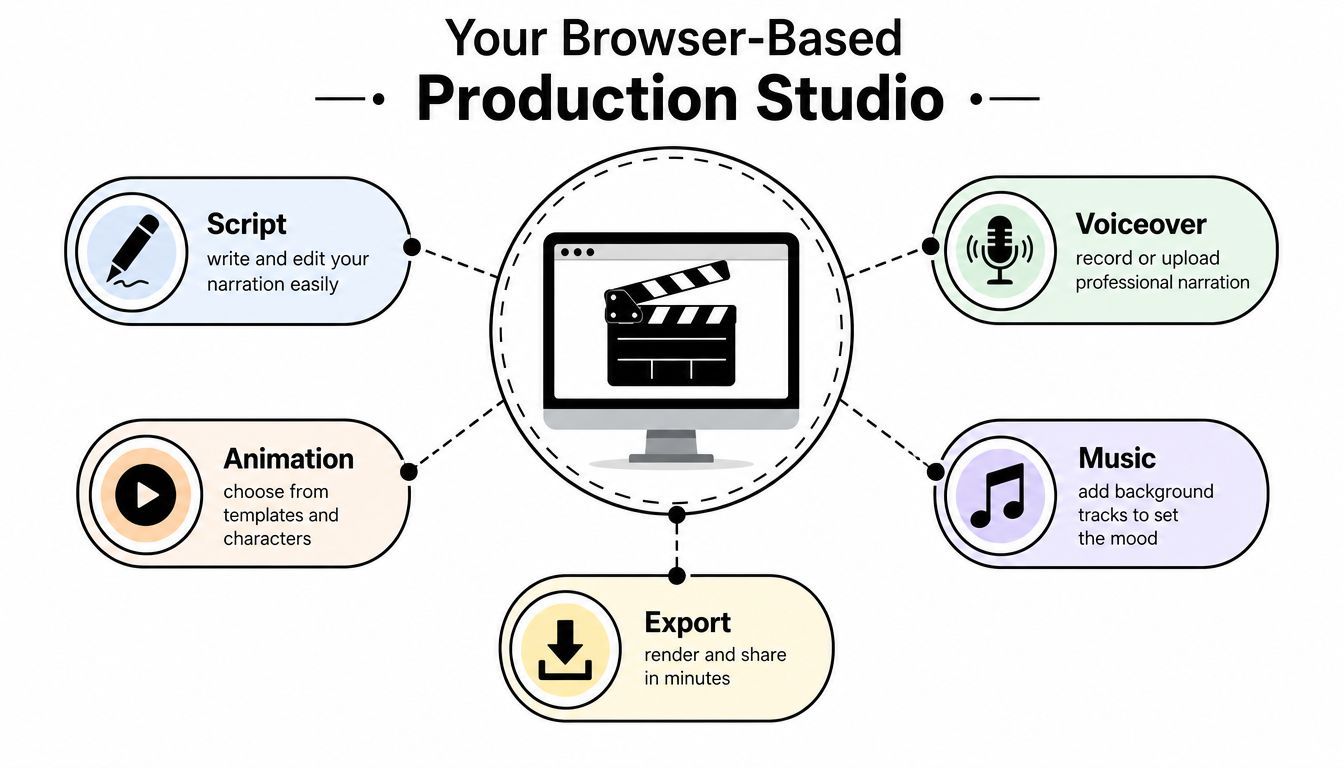
Think of an explainer video maker as a compact production studio inside your browser. Instead of sending a brief to a scriptwriter, waiting for a storyboard, hiring a voice artist, collecting animation files, and asking an editor to assemble everything, you work through connected stages in one place.
The workflow usually brings together script creation, scene design, voiceover, animation, music, captions, editing, and export. Some tools use templates and drag-and-drop controls. AI-driven platforms can also begin with a prompt, document, URL, image, or recording, then propose a script and visual sequence for you to review.
Traditional animation software often assumes that you already understand timelines, keyframes, layers, assets, and rendering. An outsourced studio handles that complexity for you, but it can also make revisions slower because every change moves through another person or team.
A modern explainer video maker sits between those approaches. You don't need to animate every object manually, but you can still adjust scenes, replace visuals, edit narration, change pacing, and apply brand rules. The tool handles repetitive production work while you retain editorial control.
That distinction matters. A basic slideshow tool places text and images on slides. A capable video maker helps you answer more useful questions:
What should the viewer understand first? Which visual demonstrates the idea better than a paragraph? Where should narration pause? What action should follow the final scene? Can someone watch and understand the video without sound?
The same underlying workflow can produce very different assets. A SaaS team might create a screen-led product walkthrough. A training department may use an avatar presenter with captions and quizzes. An ecommerce brand could combine product images, motion graphics, voiceover, and a clear call to action.
You can also create animated concept explainers, onboarding clips, feature announcements, internal policy videos, investor presentations, social ads, and support tutorials. The format should follow the goal. A product page needs clarity and confidence, while an internal training video may need navigation, knowledge checks, and learning-system compatibility.
Practical rule: Choose the viewer's next action before choosing the visual style. The style should make the action easier, not compete with it.
An explainer video maker becomes valuable when it changes what a viewer or employee can do next. The output might help a visitor understand a product, help a new customer complete setup, or help a support team answer a recurring question. The software matters because it makes those explanations easier to produce, revise, and adapt.
The category has also expanded beyond occasional creative work. One market estimate placed the global explainer video software market at USD 1.2 billion in 2023, with a projection of USD 6.7 billion by 2033 and an implied 19.1% CAGR from 2025 to 2033 (market context for explainer video software). Treat that projection as an indication of category momentum, not a promise about any individual platform or campaign.
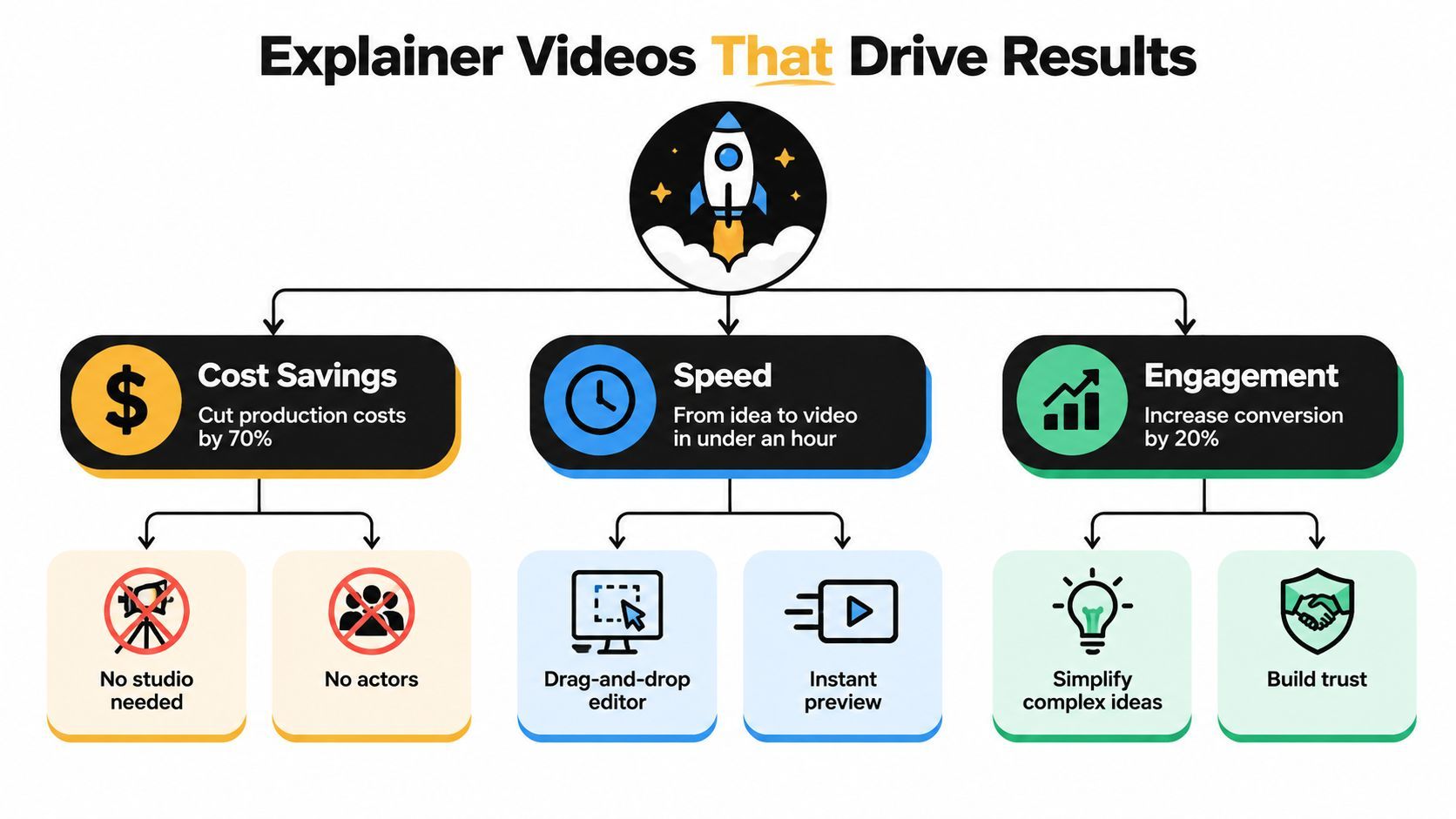
A marketing team may use a short product explanation on a landing page because visitors need to understand the offer before they request a demo. A product team may create a feature walkthrough that shows the exact path from login to successful completion. The success measure differs in each case.
Conversion: Compare how visitors interact with a page or campaign before and after adding a focused explanation. Use the same audience and context where possible. Onboarding: Track whether new users reach an activation milestone after watching a setup video. Support efficiency: Identify a repeated question, then create a visual answer that shows the task rather than describing it only in text. Training completion: Use captions, quizzes, and learning-system delivery when employees need to demonstrate understanding. Localization: Revoice or translate the same core message while preserving brand language and accessibility.
Independent data supports this outcome-focused view. Wyzowl reports that 93% of video marketers say video increased user understanding, and 52% identify video as the content type with the highest return on investment (Wyzowl video marketing data). The figures describe marketer-reported results across video use, so they shouldn't be treated as a guaranteed lift for every explainer.
SaaS companies can show a workflow instead of describing every button. Ecommerce teams can demonstrate how a product works, what arrives in the package, or how a customer uses it. Sales teams can send a personalized explanation after a discovery call, especially when different prospects care about different features. Guidance on using personalized video for these situations is available in this overview of video personalization software.
The strongest use cases share one trait: the viewer has a question, and the video answers it in a sequence. If you can't name the question, the video may become attractive but directionless content.
A basic editor can arrange media. A modern explainer video maker should help you move from source material to an understandable, accessible, branded asset. The right feature set depends on your use case, but several capabilities consistently support that outcome.
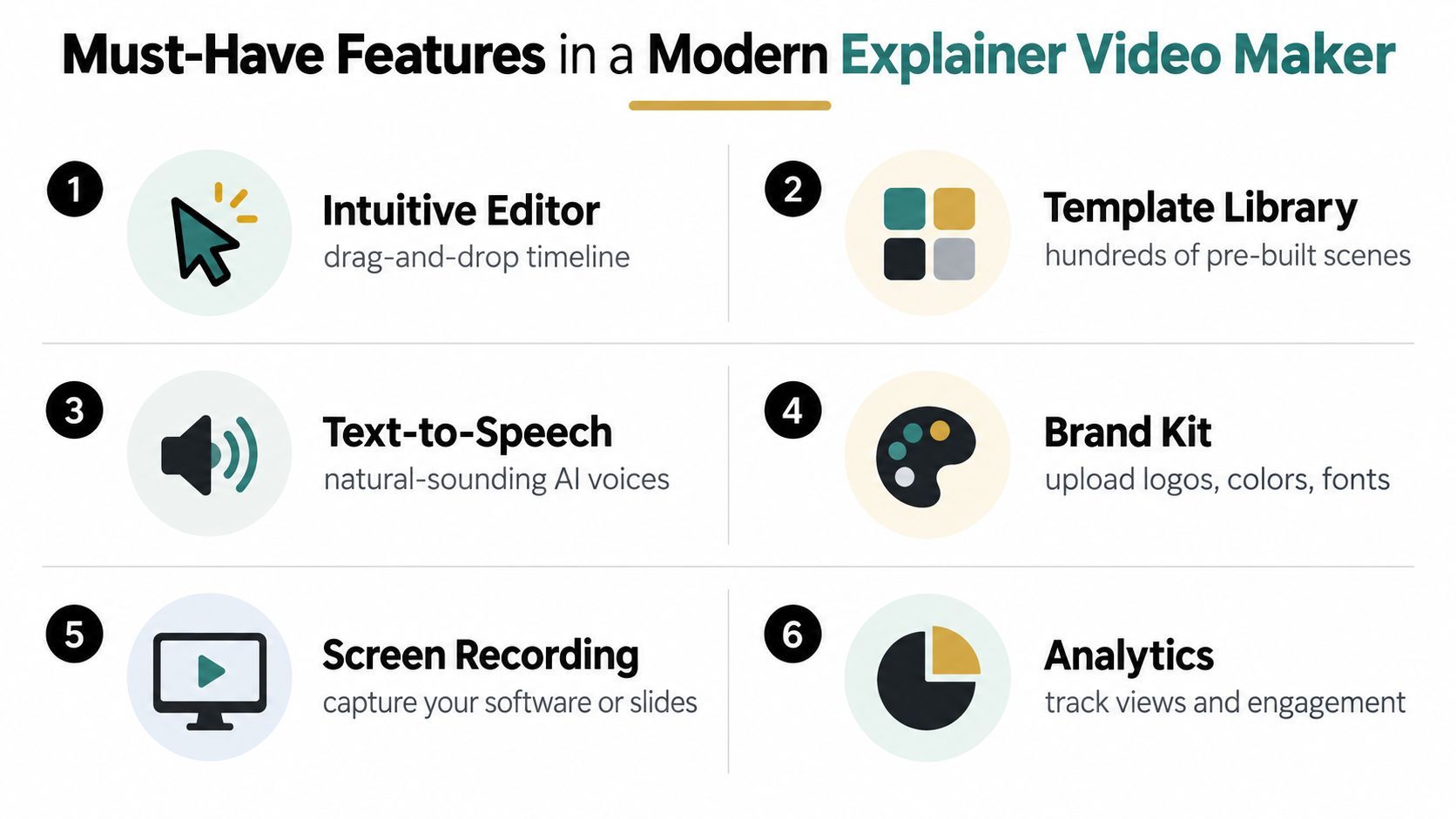
AI script assistance can turn a product brief or rough idea into a starting structure. It shouldn't replace subject-matter review. Ask the tool to identify the problem, explain the process, and end with one specific action, then remove claims the source material doesn't support.
Text-to-video is useful when you have a clear brief but few visual assets. Image-to-video can add motion to product stills or illustrations. Avatar presenters work well when a human-style guide improves trust or makes training feel more direct, while animation and screen recording are often clearer for interfaces and processes.
Look for scene-level editing rather than one-click generation only. You should be able to revise a single sentence, swap a visual, shorten a pause, move a caption, and regenerate one section without rebuilding the entire project.
A brand kit should store approved logos, colors, fonts, and recurring design elements. Saved templates can help different contributors create consistent videos without copying settings manually. Voiceover options should include recording, uploads, generated voices, and controls for pronunciation where product names require care.
Export flexibility matters because a video designed for a website may not suit a vertical social feed. One-click resizing, caption controls, MP4 export, and social-ready versions reduce unnecessary rework.
Accessibility isn't a finishing touch. The W3C guidance for making audio and video accessible recommends planning accessibility from the start, including captions and transcripts. Use strong visual contrast, readable text, descriptive visual context where needed, and narration that doesn't force viewers to rely on a single sensory channel.
Localization requires more than translating a script. Check whether the platform supports multilingual narration, caption editing, pronunciation review, and lip sync when an avatar appears. A translated sentence may take more or less time than the original, so the timeline must allow pacing changes instead of squeezing every language into identical scene lengths.
For a broader look at AI-supported production options, compare the workflows discussed in this guide to the best AI video creation tools.
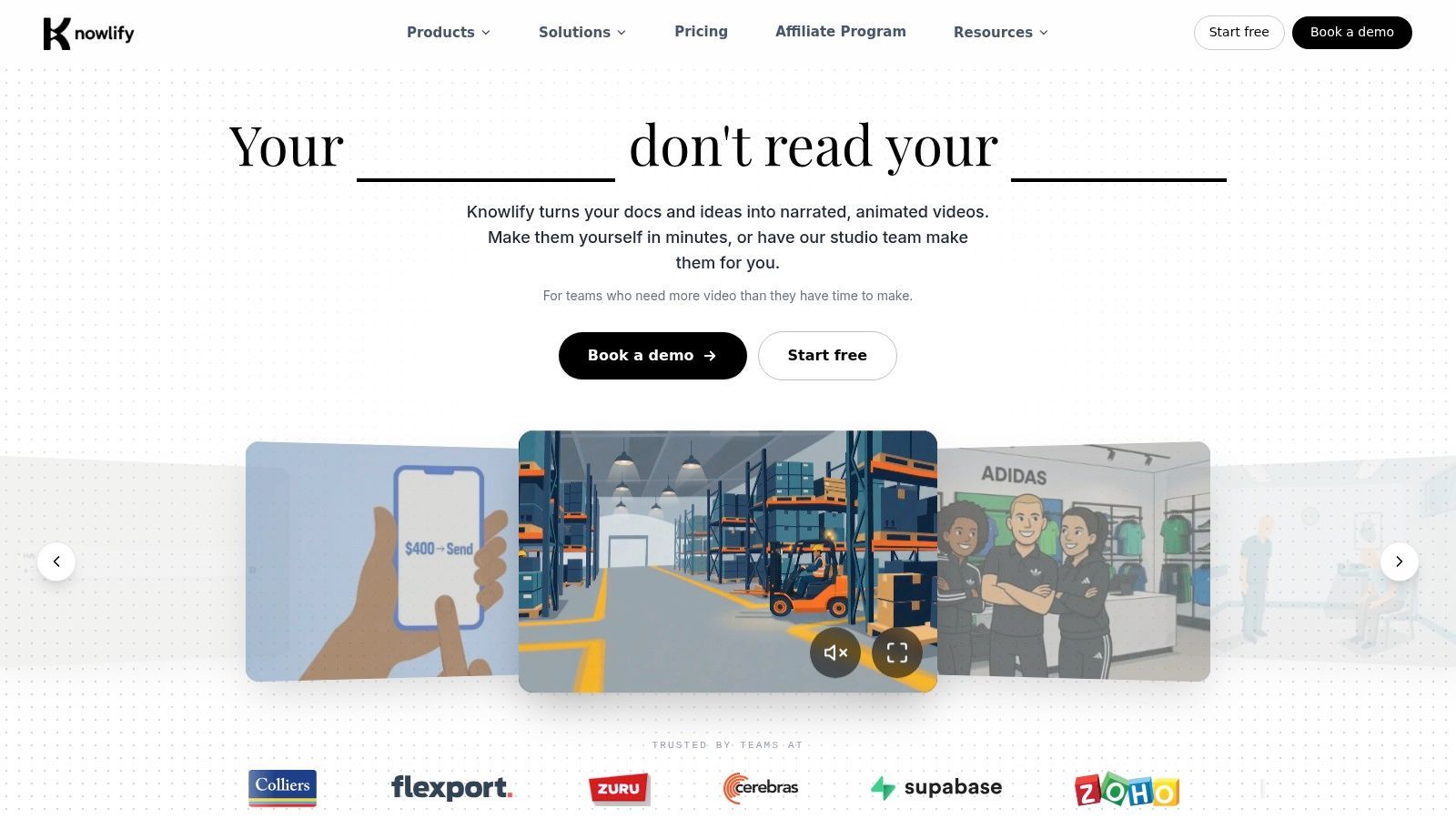
Knowlify combines a self-serve AI video platform with a full-service studio. That combination suits teams that want to create routine explainers independently but still need help with scripting, storyboards, or animation for a more involved project.
You can start with a document, URL, video, or idea, then use AI to generate a narrated animation. The platform supports chat-based editing, so revisions can begin as plain-language instructions rather than timeline commands. Its audio tools include 140+ natural voices, accents, voice cloning, and built-in music, while brand kits, reference images, custom characters, and saved templates help maintain visual consistency.
A practical Knowlify workflow looks like this:
Provide the source: Upload a document, paste a URL, submit an idea, or convert existing video content. Shape the narrative: Review the generated script and adjust the audience, tone, claims, and call to action. Set the visual system: Apply the brand kit, reference images, custom characters, presenter, or avatar. Review narration: Select a voice, check pronunciation, and adjust pacing before rendering. Add learning or action layers: Include captions, quizzes, or clickable calls to action where they support the outcome. Distribute the result: Export an MP4, create social-ready cuts, or package training content through SCORM and LMS integrations.
Knowlify also supports translation and re-voicing in 30+ languages, with captions. That makes it relevant for organizations that need consistent product education or training across regions. Its collaboration workspace includes shared libraries, roles, and review flows, while API access and priority rendering support larger production operations.
For readers evaluating a platform with these workflows, Knowlify's explainer video maker provides a useful place to inspect the product approach directly.
Knowlify is a sensible fit when your source material already exists in documents or web pages, when training must connect to an LMS, or when you want the option to hand complex production to a studio. Knowlify Studio offers done-for-you scripts, storyboards, and animation, with turnaround as little as 72 hours, according to the provided product information. Review current plan terms, security documentation, and support arrangements before choosing it for a regulated or enterprise workflow.
Start with the outcome, not the prompt. Write one sentence that completes this structure: “After watching this video, the viewer should understand ___ and do ___.” If the sentence contains several actions, split the project into separate videos.
A customer who has never seen your product needs a different explanation from an existing user learning a new feature. Write down the audience, their current problem, the one idea they need to remember, and the next step you want them to take.
Gather source material before opening the generator. Product screenshots, approved terminology, help-center articles, brand guidelines, and customer questions give the AI better material than a vague request.
Ask the tool for a simple structure: problem, explanation, proof or reassurance, and call to action. Treat the generated script as a draft. Remove repeated benefits, unsupported superlatives, internal jargon, and sentences that sound natural on paper but awkward when spoken.
Read the script aloud. If you run out of breath, the sentence probably needs editing. Replace abstract wording with visible action. “Improve operational efficiency” is difficult to illustrate. “Create a request, assign an owner, and see its status” gives the viewer something concrete to watch.
Assign one main idea to each scene. Use product screens for interface actions, diagrams for relationships, animated objects for processes, and an avatar only when a presenter adds value.
Don't ask visuals to carry information that narration never explains. Conversely, don't place every spoken sentence on screen as text. Captions should support comprehension, not create a second script that viewers must read at the same time.
Choose a voice that fits the audience and subject. Review pronunciation for names, acronyms, and technical terms. Keep background music quiet enough that narration remains easy to follow, then check the mix on ordinary headphones and a laptop speaker.
AI tools can create a fast first version, but timing still needs human judgment. Remove pauses that feel accidental, extend scenes where the viewer needs to inspect a screen, and cut decorative movement that doesn't clarify the idea.
Watch once with sound off. The story should remain understandable through captions and visuals. Check contrast, text size, caption accuracy, flashing effects, reading time, and whether the transcript matches the final narration.
Export the version that fits the destination. A website demo, a vertical social clip, and a training module may require different framing and pacing. For additional prompt-based production ideas, see this guide to using AI to create videos.
Two platforms can both promise fast video creation while serving completely different workflows. One may excel at avatar-led training, another at animated scenes, and another at turning existing documents into narrated videos. Start by examining the work your team repeats most often.
A small marketing team may prioritize a simple editor, templates, brand controls, and quick exports. A learning team may need captions, quizzes, SCORM packaging, LMS integrations, learner analytics, and multilingual narration. A product team may care more about screen recording, scene-level editing, and the ability to update one feature explanation without recreating the full video.
| Criteria | What to Look For | Why It Matters |
|---|---|---|
| Ease of use | Guided workflow, editable scenes, clear preview | Contributors can produce and revise videos without specialist training |
| Source support | Text, documents, URLs, images, recordings, or slides | You can begin with material you already maintain |
| Output quality | Natural narration, coherent visuals, clean timing | The video reflects on the credibility of the product |
| Brand control | Logos, fonts, colors, templates, approved assets | Repeated videos look like they belong to the same organization |
| Accessibility | Captions, transcripts, contrast controls, readable layouts | More viewers can understand the message |
| Localization | Translation, re-voicing, caption editing, lip sync | Regional versions remain useful and consistent |
| Collaboration | Roles, comments, review steps, shared libraries | Approval doesn't depend on scattered files and messages |
| Pricing model | Free limits, credits, exports, seats, storage, usage rules | The apparent price matches the way your team actually produces |
| Distribution | MP4, social formats, LMS or SCORM support, analytics | The finished asset reaches the right audience and can be evaluated |
Overlong scripts create crowded scenes and weak pacing. Inconsistent branding appears when every contributor starts from a different template. Missing captions limit access and make silent viewing frustrating. Localization added at the end can force a complete rebuild when translated narration no longer fits the original timing.
Pay attention to ownership and export restrictions, too. A free tier may help you test the workflow, but check watermarks, commercial-use terms, resolution, storage, voice usage, and whether editable source assets remain available after cancellation.
Buying advice: Test one real project from source material to final export. A polished demo can hide friction in script revision, approval, caption correction, or localization.
All-in-one suites can reduce the number of handoffs between image, video, and audio work, while specialized tools may offer deeper control in one format. SendFame, for example, provides browser-based AI tools for generating videos from prompts or uploaded images alongside image and music creation features. Compare that kind of unified workflow with a dedicated animation or avatar platform according to the outcome you need.
A SaaS startup notices that trial users abandon setup after creating an account. The team turns its help article into a short walkthrough with screen recordings, highlighted interface actions, narration, and captions. The useful measurement isn't the number of scenes produced. It's whether more viewers complete the intended setup action after watching.
An ecommerce brand has strong product photography but weak product understanding. It uses image-to-video motion, a short demonstration, and a direct explanation of how the item fits into a customer's routine. The product page video answers practical questions that static images leave open, while the team compares page behavior and purchase activity against a suitable baseline.
A corporate learning group needs to explain the same safety procedure to employees in several regions. It creates one approved storyboard, then produces translated narration and captions while checking terminology with local reviewers. Consistent templates protect the core message, while language-specific timing prevents the localized versions from feeling rushed.
A sales team can apply the same principle at a smaller scale. After a prospect asks about one feature, the representative creates a focused explanation using the relevant screen, a personalized opening, and one next step. The video works because it responds to a real question rather than presenting the entire product.
Across these examples, the format changes, but the logic stays stable: identify friction, visualize the solution, make the content accessible, and measure the action that follows.
An explainer video maker is most useful when it turns confusion into a measurable next step. Start with one audience, one problem, and one action. Write the script before decorating the scenes, review every generated claim, and build captions and localization into the workflow from the beginning.
Choose a platform based on your production reality. If your team needs document conversion, interactive training, brand controls, and multilingual delivery, assess those capabilities directly. If you need a simple product clip, don't pay for complexity you won't use.
Create one focused video, publish it where the question occurs, and track understanding, completion, conversion, or support behavior. Then revise the message using what viewers do.
Choose one customer question your team hears repeatedly today, turn it into a focused script, and create your first accessible explainer video with an explainer video maker. Publish it to the page, onboarding flow, or support channel where that question appears, then use the resulting viewer behavior to decide what to improve next.
Create Epic

SendFame

Create Epic with SendFame!
Questions: info@sendfame.com